Menu Settings
WordPress provides a flexible menu management system that allows you to create and organize navigation menus for your website.
Our theme fully supports the native WordPress Menu system, making it easy to manage header, footer, and other navigation areas.
Accessing the Menu Settings
To create or edit menus in WordPress:
- Go to Dashboard → Appearance → Menus.
- From this screen, you can:
- Create new menus.
- Add pages, posts, custom links, or categories to a menu.
- Assign menus to specific theme locations (e.g., Primary Menu, Footer Menu).
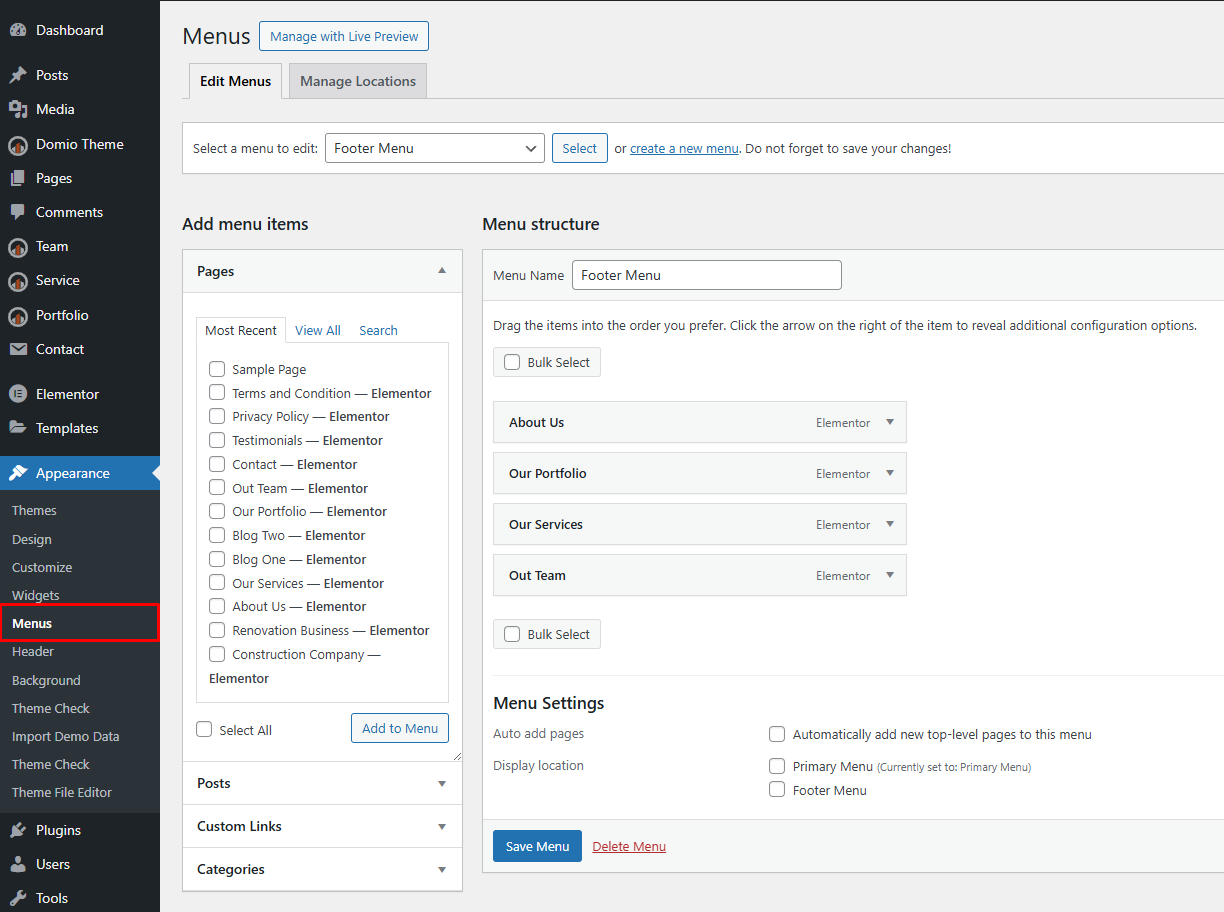
Creating a New Menu
- Click the create a new menu link at the top of the screen.
- Enter a Menu Name (e.g., Main Menu, Footer Menu).
- Click Create Menu.
Once created, you can start adding items to your menu.
Adding Menu Items
In the Add menu items section:
- Choose items from Pages, Posts, Custom Links, or Categories.
- Select the pages or posts you want to include.
- Click Add to Menu to include them in the Menu Structure area.
You can reorder menu items by dragging and dropping them into your desired order.
Menu Structure
The Menu Structure panel allows you to:
- Reorder items: Drag and drop to change the menu hierarchy.
- Nest items: Indent items to create dropdown submenus.
- Edit labels: Click the dropdown arrow on any menu item to change its label or settings.
Example menu items may include:
- About Us
- Our Portfolio
- Our Services
- Our Team
Menu Settings (Display Locations)
At the bottom of the screen, under Menu Settings, you can assign where the menu will appear on your site.
Available options typically include:
- Primary Menu – The main navigation, usually located in the site header.
- Footer Menu – A secondary menu displayed in the footer area.
To assign a menu to a location, check the appropriate box (e.g., Footer Menu) and click Save Menu.
Tips
- You can manage multiple menus and assign them to different theme locations.
- Elementor templates (such as custom headers and footers) can also dynamically display menus using the Nav Menu widget.
- If you import demo data, predefined menus are usually created and assigned automatically.
This setup ensures your navigation menus are fully functional and integrated with the theme layout.